Would you like to design your WooCommerce product pages exactly how you want them? The Templates Builder in Botiga Pro lets you create a custom single product template and apply it to your products, using either the Block Editor or Elementor.
In this guide, we’ll walk you through how to build a custom single product template in Botiga.
Before you get started, make sure you’ve installed and activated the Botiga theme on your WordPress site. If you’re using features from Botiga Pro, ensure that both the Botiga theme and the Botiga Pro plugin are installed and active. The Templates Builder is a Botiga Pro feature, so this requires Botiga Pro.
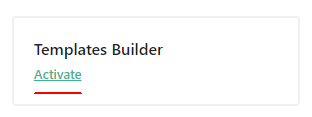
1. Go to Appearance » Theme Dashboard and activate the Templates Builder module.
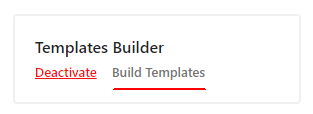
2. Click on Build Templates.
3. Click on Add Template.

4. Name your template.

5. Click on the Display Conditions icon.

6. Add a new condition and choose Single Product.

7. Click on Create New and select your preferred builder.

The Templates Builder works with either the WordPress Block Editor (Gutenberg) or the Elementor page builder.
8. If you’re using the Block Editor, click the plus icon and search for the Botiga Templates Builder components to insert on the page. If you’re using Elementor, skip this step and move on to the next one.

9. If you’re using Elementor, you’ll find the Botiga widgets under Botiga WooCommerce in the left sidebar. If you’re using the Block Editor, skip this step and follow step 8 instead.

10. Once you’re done, save or publish your changes.
Frequently asked questions
Below, we’ve answered some of the most common questions about building a custom single product template in Botiga.
Will my template apply to every product?
With the Single Product condition selected, the template applies to all products. To target only certain products, add more specific display conditions.
Do add-to-cart and product data still work in a custom template?
Yes. The Botiga WooCommerce components pull live product data, including the add-to-cart button, price, and gallery, so your store keeps functioning as normal.
That’s it! You’ve successfully built a custom single product template in Botiga and applied it to your products.
Next, would you like to design your shop and archive pages too? Check out our guide on building a custom shop catalog template, or read the Botiga Templates Builder overview to learn more.
