Would you like to fully customize the design and layout of your WooCommerce checkout page? Sydney Pro’s Template Builder module includes a dedicated Checkout widget for Elementor, giving you complete control over the checkout layout, form fields, order review section, and button styling.
In this guide, you will learn how to replace the default WooCommerce checkout with a fully custom checkout page built with Elementor.
1. Activate the Template Builder Module
This feature is only available in Sydney Pro. To learn more about Sydney Pro, please go here.
Before you begin, activate the Template Builder module. Go to your WordPress admin area and navigate to Appearance > Theme Dashboard. Locate the Template Builder module and click Activate.
2. Prepare the Checkout Page for Elementor
Navigate to your WooCommerce checkout page. Go to Pages in your WordPress admin area, find the Checkout page, and click Edit.
In the WordPress editor, remove the existing WooCommerce checkout shortcode ([woocommerce_checkout]) from the page content. This shortcode renders the default checkout form, and you will replace it with the Elementor-based Checkout widget.
Note: Optionally, change the page template to Elementor Canvas from the page settings. This removes the header and footer, giving you a completely blank canvas. If you prefer to keep your site header and footer, leave the default template.
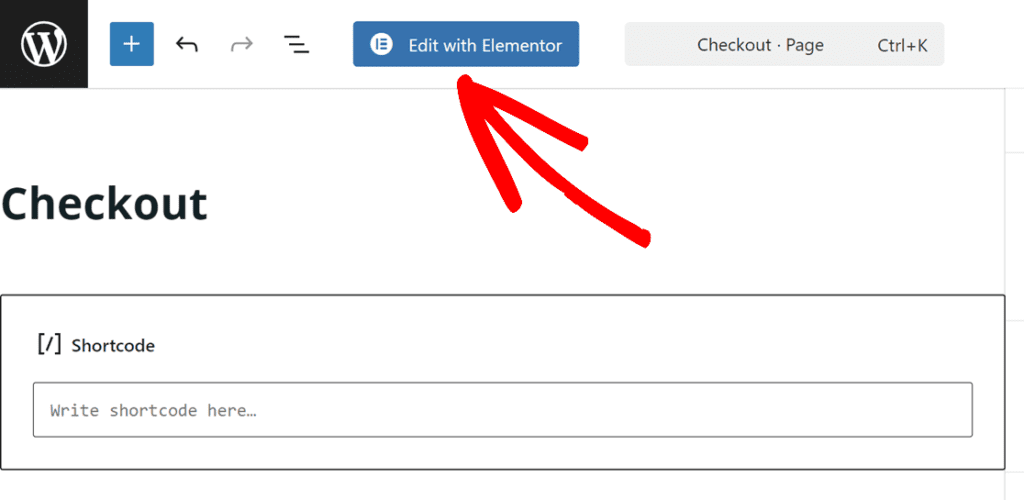
Click Edit with Elementor to open the Elementor editor.
3. Add the Sydney Checkout Widget
In the Elementor editor, add a new section and insert a Heading widget. Set the heading tag to H1 and type “Checkout” (or your preferred title). Add some padding to the section to create spacing around the content.
Next, locate the Checkout widget. Open the Elementor widget panel and look under the Sydney Shop Elements category. Drag the Checkout widget and drop it below your heading.
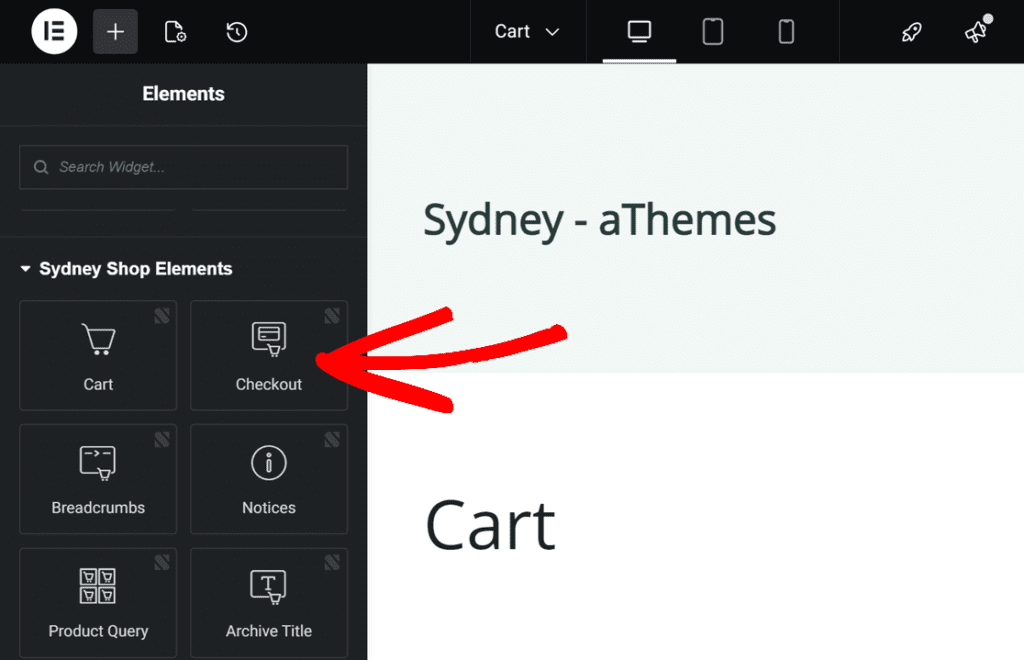
The Checkout widget will display a fully functional WooCommerce checkout form that you can now customize.
4. Configure the Checkout Widget Settings
With the Checkout widget selected, use the Content tab in the Elementor panel to configure the following settings:
- Layout — Choose between a one-column or two-column layout. The two-column layout places the billing and shipping fields on the left and the order review on the right.
- Order review size— Adjust the width of the order review area to control how much horizontal space it takes up in the two-column layout.
- Spacing — Control the spacing between the billing/shipping section and the order review section.
- Order Review
- Title — Show or hide section titles (e.g., “Billing details,” “Your order”).
- Table Header — Show or hide the table header row in the order review.
- Coupon — Show or hide the coupon code field. Hide it if your store does not use coupons.
Note: If you’d like to customize the appearance of the checkout page, open the Style tab in the form builder. From there, you can adjust the look of the checkout form fields, the order review section, and the Place order button (colors, typography, borders, spacing), then click Update to save your changes.
5. Preview Your Custom Checkout Page
Navigate to your checkout page on the frontend to see your custom checkout in action. Add a product to your cart and proceed to checkout to verify that the layout, form fields, order review, and button all look and work as expected.
Just like the custom cart page, one of the main advantages of this approach is that you can add any Elementor widget before or after the Checkout widget. For example, you can add trust badges, shipping information, promotional banners, or any other content to create a checkout experience tailored to your customers.
That’s it! You now have a fully custom WooCommerce checkout page built with Elementor and Sydney Pro’s Template Builder module.
Next, would you like to customize your cart page as well? Check out our guide on How to Build a Custom Cart Page with Sydney Pro and Elementor for a similar step-by-step walkthrough.
