Setting Up Dark Mode in Sydney Pro
This tutorial will show you how to set up Dark Mode in Sydney Pro and add the Dark Mode Switch to your site.
Requirements:
- You’ll need Sydney Pro to use Dark Mode
- Ensure that you’ve installed Sydney Pro version 4.3.3 or higher to meet the minimum required version for Dark Mode
- To show the Dark Mode Switch, your site needs to use the Header Builder or Elementor
Before you get started, make sure you’ve installed Sydney Pro and activated your Sydney Pro license. Dark Mode builds on your Global Colors, so it helps to set up your light palette first.
Turning On Dark Mode
To get started, go to Appearance » Customize » Global Styles » Colors. Below your Global Colors, turn on the Dark Mode Support toggle.
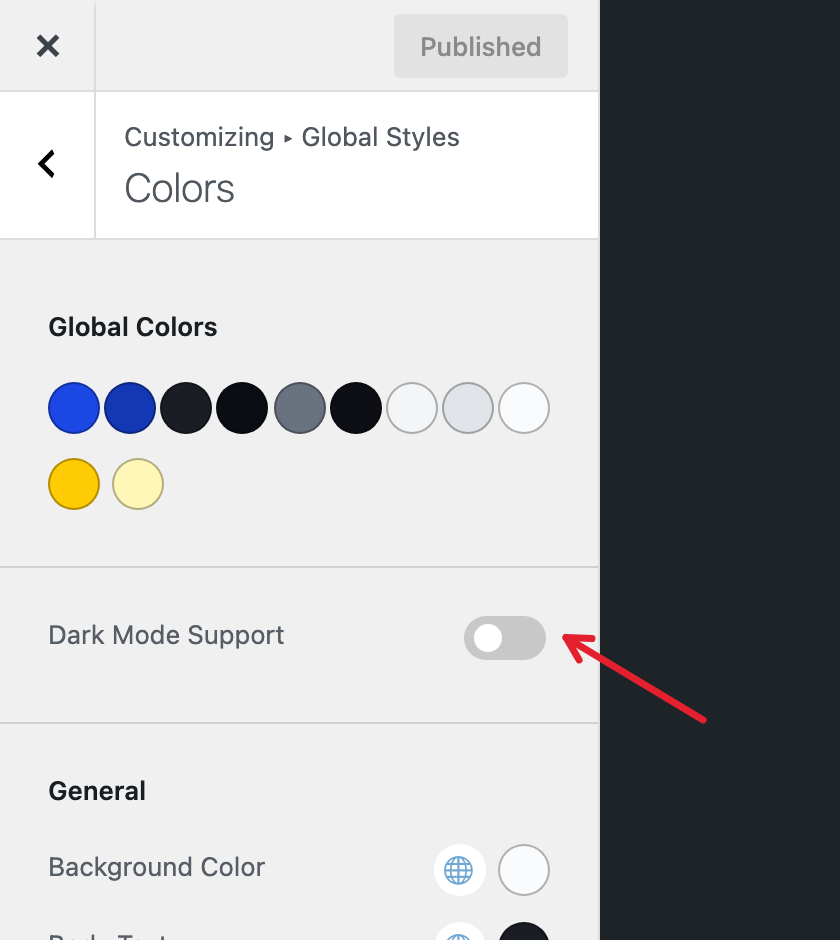
When you turn it on, the Dark Mode settings appear below the toggle. Your site won’t look any different yet. Visitors only see your dark colors after you add a Dark Mode Switch or turn on Follow System. We’ll cover both below.
Choosing Your Dark Colors
The Dark Palette holds the colors your site uses in dark mode. It has the same slots as your Global Colors, and each dark color takes the place of the Global Color in the same position. Sydney Pro fills the palette with a set of dark colors, so you can start with those and adjust them.
If your site uses extra Global Colors, a second row lets you pick their dark versions. If you leave one of them empty, that color keeps its light value in dark mode.
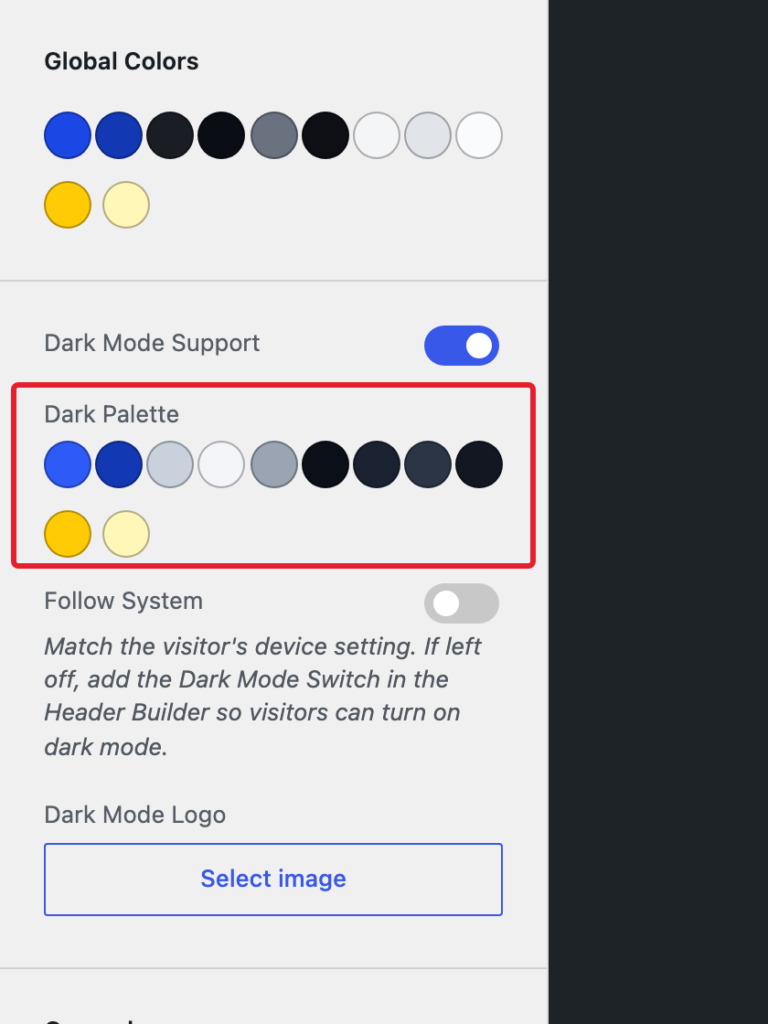
To change a color, click it and pick a new one in the color picker. To go back to Sydney Pro’s dark color, click Default.
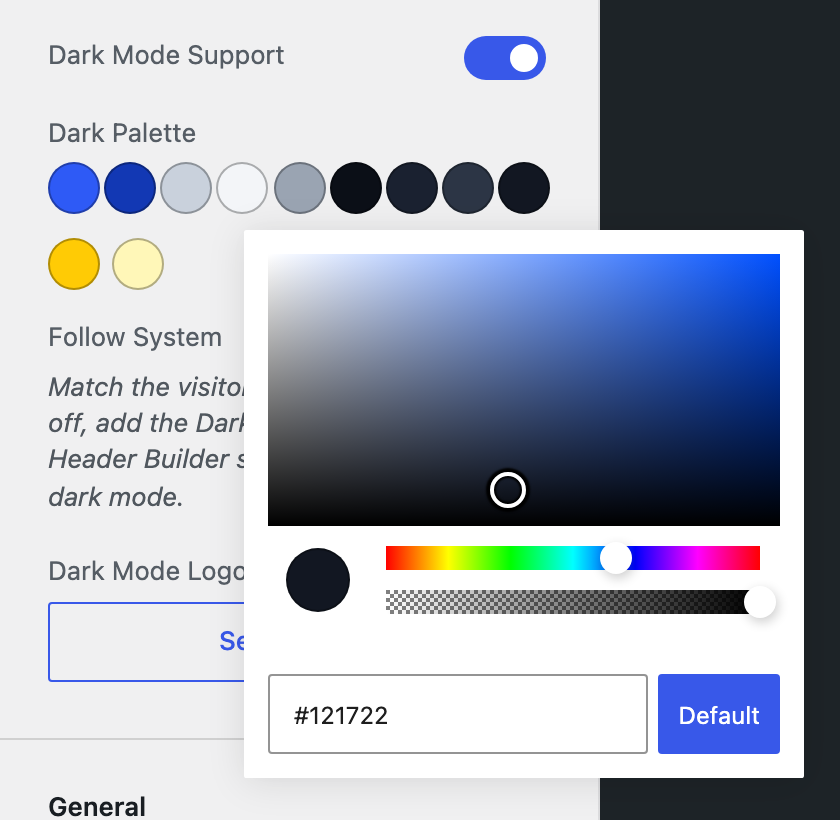
Every part of your site that uses a Global Color switches to the matching dark color. This includes Elementor content that uses the theme’s Global Colors. Colors you picked by hand, without linking them to a Global Color, stay the same in dark mode. To learn how to link a color setting, see our guide on connecting color options to Global Colors.
Following the Visitor’s Device Setting
Turn on Follow System if you’d like your site to match each visitor’s device. When their phone or computer is set to dark mode, your site loads with the Dark Palette. When it’s set to light mode, they see your normal colors.
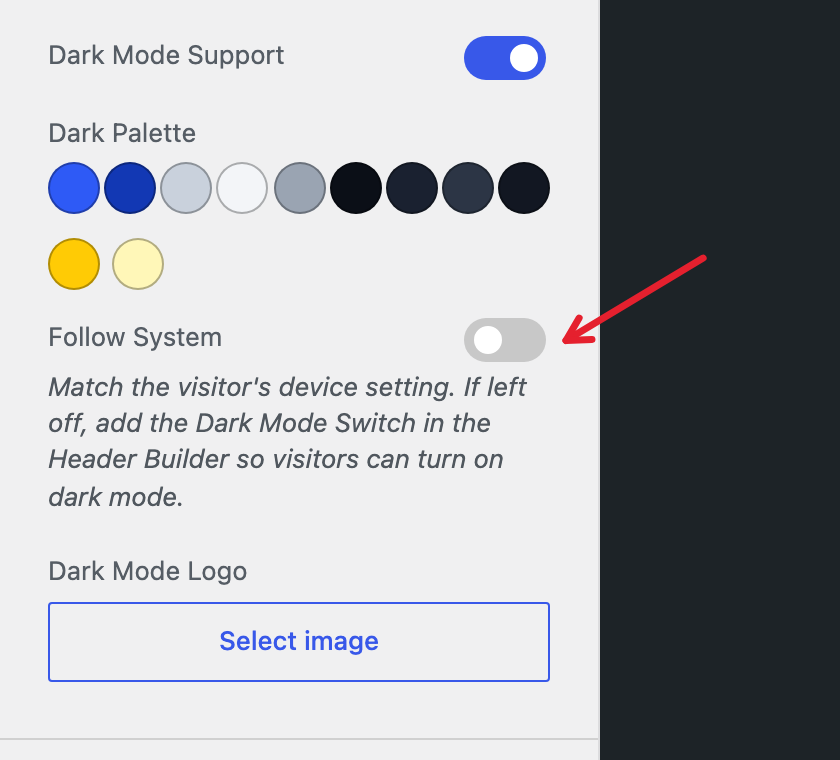
Visitors can still change the mode with the Dark Mode Switch, and their choice wins over the device setting.
With Follow System off, everyone sees your light colors until they click the Dark Mode Switch. So if you leave it off, make sure you add the Switch.
Adding a Dark Mode Logo
If your logo is hard to see on a dark background, you can upload a second version for dark mode. Under Dark Mode Logo, click Select image and choose the image from your Media Library.
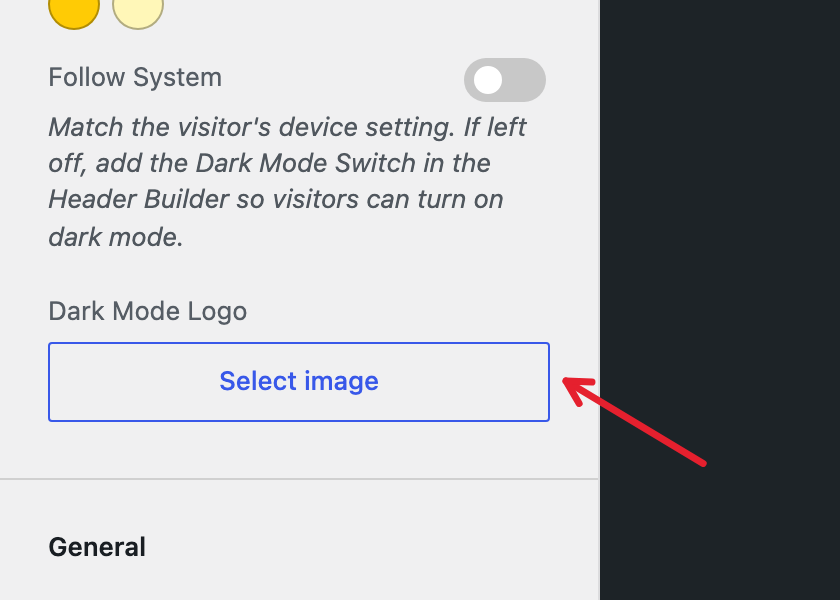
In dark mode, this image replaces your site logo on desktop and mobile. It only works when your header shows a logo image. If your header shows your site title as text, add a logo first. For details, see our guide on how to add a logo, site title and site icon.
When you’re done, click Publish to save your changes.
Adding the Dark Mode Switch
The Dark Mode Switch is a small icon button. Visitors click it to change your site between light and dark. You can add it to your header with the Header Builder, or to any page with Elementor.
Adding the Switch to Your Header
Go to Appearance » Customize » Header » Header Builder. In the builder at the bottom of the screen, click an empty spot in the row where you’d like the Switch. Then click Dark Mode Switch.
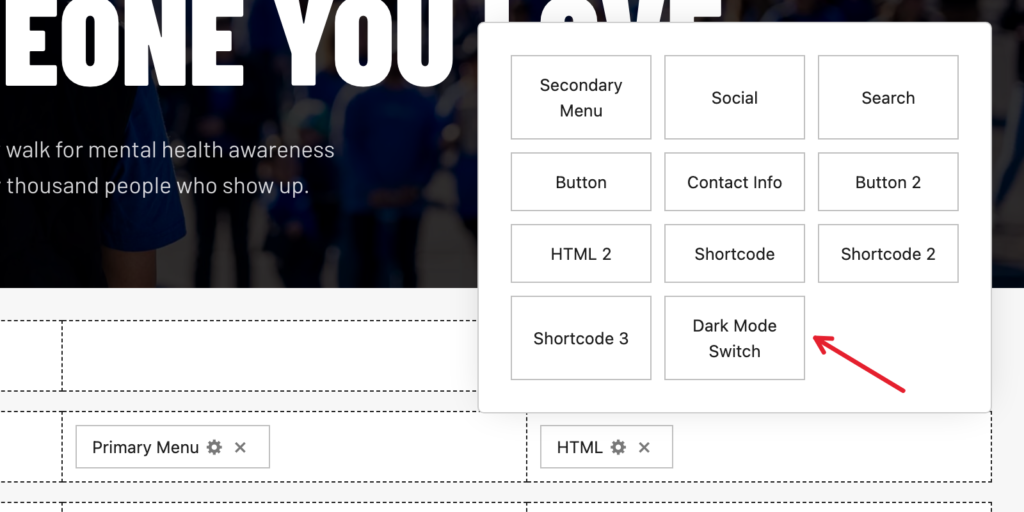
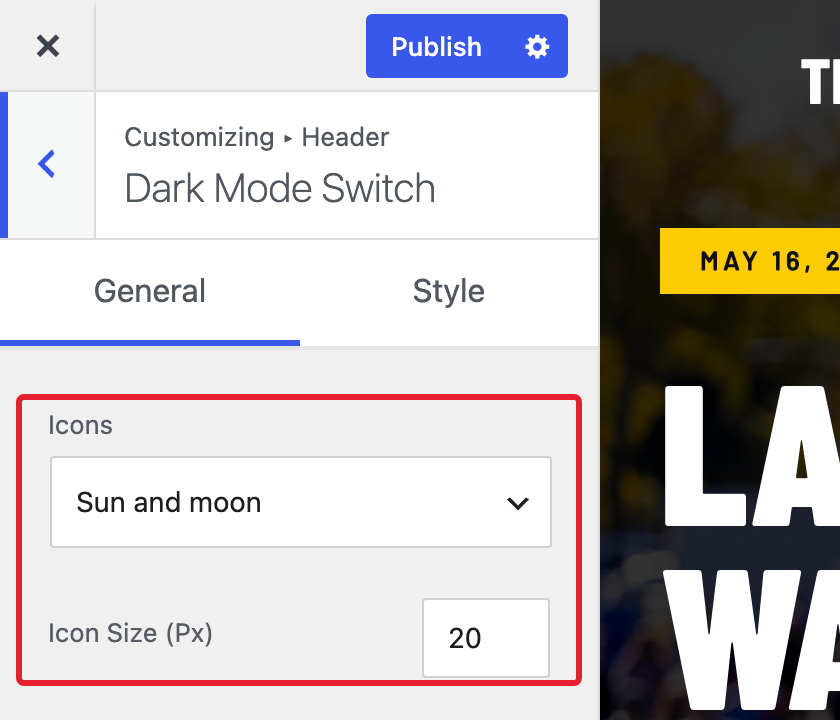
The Switch appears in your header, and its settings open in the left panel. The General tab has two settings.
- Icons: Choose Sun and moon, Sun and moon, filled, or Half circle.
- Icon Size (Px): The size of the icon in pixels. The default is 20.
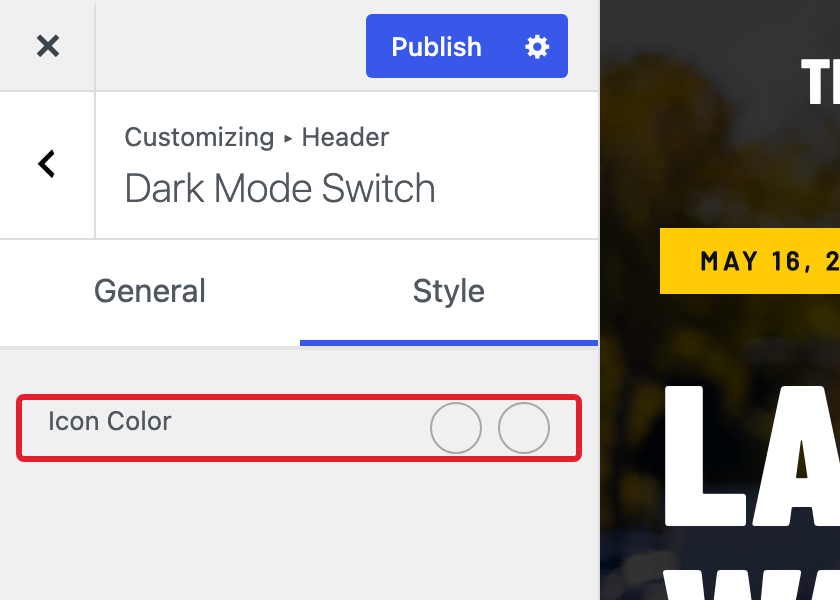
On the Style tab, use Icon Color to color the icon. The first circle sets its normal color. The second sets its hover color, which also shows when a visitor reaches the Switch with the keyboard. If you leave them empty, the icon uses the color of the text around it.
To add the Switch to your mobile header, click Tablet/Mobile at the bottom of the builder and add it the same way. Then click Publish.
If Dark Mode Support is turned off, the Switch settings show a message asking you to turn it on, and the Switch won’t appear on your site.
Adding the Switch With Elementor
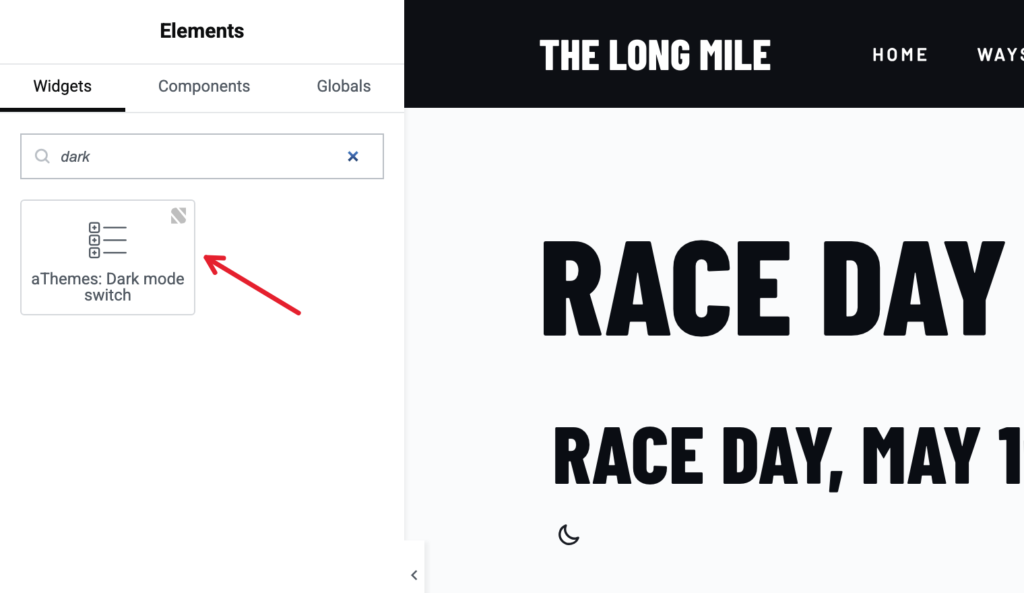
Open a page in the Elementor editor and type “dark” in the widget search. Then drag the aThemes: Dark mode switch widget onto your page.
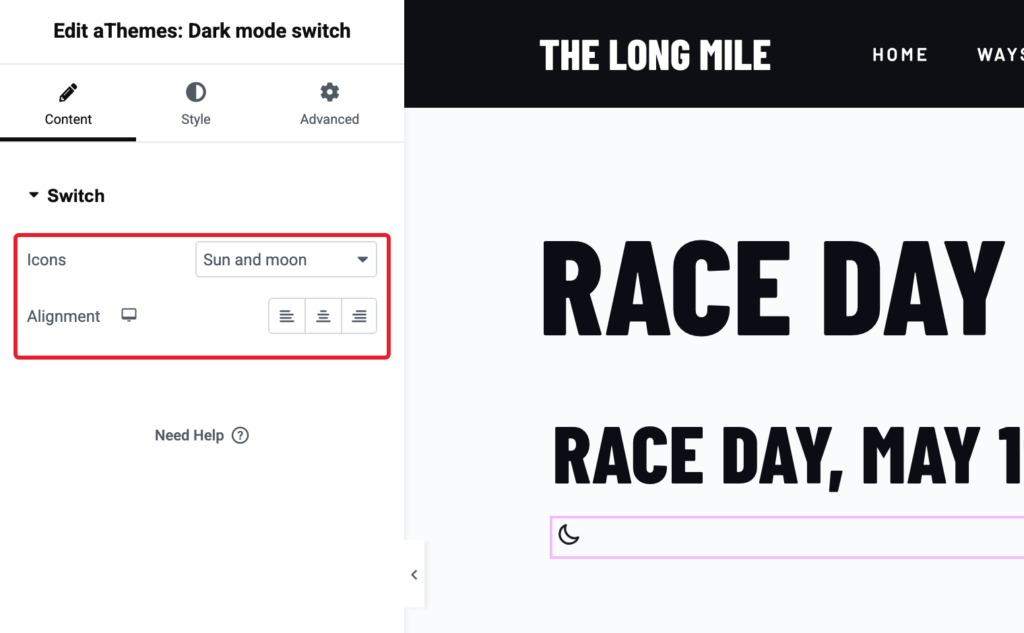
On the Content tab, choose the Icons and set the Alignment. On the Style tab, you can change the Size, Color, and Hover color of the icon.
You can use more than one Switch on your site. They all stay in step, so when a visitor clicks one, the others show the same mode.
What Your Visitors See
While your site is light, the Switch shows a moon.

When a visitor clicks it, the page changes to your Dark Palette and the icon turns into a sun. Clicking the sun switches the page back to light.
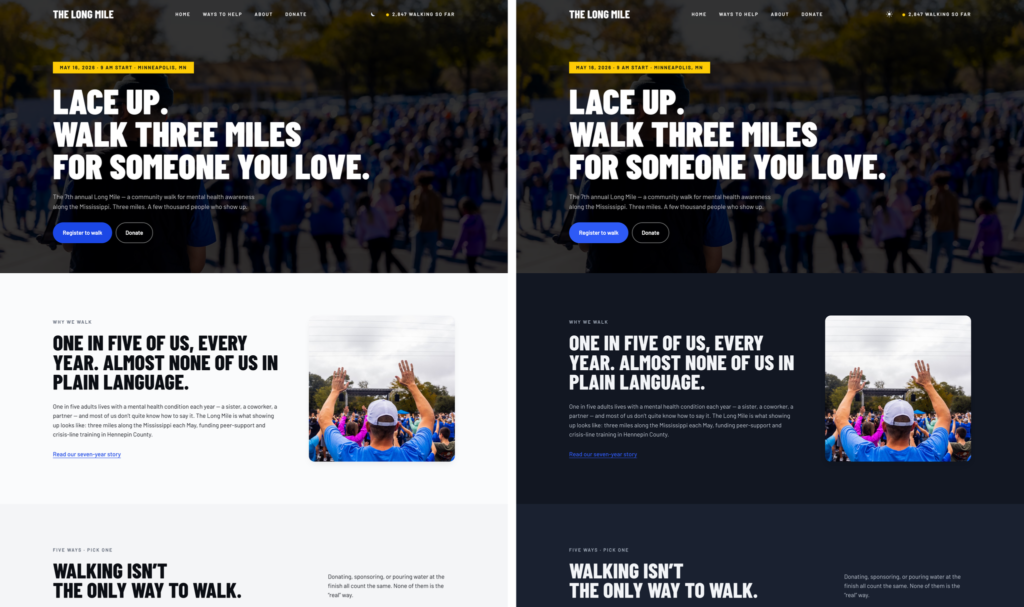
Sydney Pro saves the choice in the visitor’s browser. Every page they open after that, including on later visits, loads in the mode they picked, without flashing the light colors first.
Frequently Asked Questions
Below, we’ve addressed some of the most common questions about Dark Mode in Sydney Pro.
Why does my site still look light after I turned on Dark Mode Support?
Dark Mode Support makes your dark colors available to visitors. It doesn’t switch anyone to them. Visitors see them after they click a Dark Mode Switch. If Follow System is on, visitors whose device is set to dark mode see them as soon as the page loads.
How can I preview my dark colors in the Customizer?
Click the Dark Mode Switch in the Customizer preview. The preview changes to your Dark Palette, and any color you change in the palette updates there as you pick it. Your browser remembers this choice, just like a visitor’s browser does, so click the Switch again to go back to light.
Why is some text hard to read in dark mode?
Dark mode replaces every Global Color with its Dark Palette version. If a section has light text on a dark background and both colors come from Global Colors, they can end up too close in dark mode. For example, text set to a light Global Color turns dark, while a section background that stays dark keeps its color. For text that should stay light in both modes, such as text on a dark photo or a dark section, pick a custom color instead of a Global Color.
Why do some colors stay the same in dark mode?
Colors you set by hand and colors added by other plugins don’t change in dark mode. To make a color setting follow the Dark Palette, link it to a Global Color. You can also add your own CSS in Appearance » Customize » Additional CSS. Start the rule with :root[data-color-scheme="dark"], as in this example.
:root[data-color-scheme="dark"] .my-box { background-color: #121722; }
If Follow System is on, add the same rule a second time inside a media query. This copy applies to visitors whose device is set to dark mode and who haven’t clicked the Switch.
@media (prefers-color-scheme: dark) { :root:not([data-color-scheme="light"]) .my-box { background-color: #121722; } }
Replace .my-box with the CSS selector of the element you want to change.
Can I use Dark Mode with the classic header?
The Dark Mode Switch is available in the Header Builder and as an Elementor widget. If your site uses the classic header and doesn’t use Elementor, turn on Follow System. Visitors whose device is set to dark mode will then see your dark colors. To start using the Header Builder, see our Header & Footer Builder guide.
How do I set a dark logo in a Template Builder header?
The Elementor Site logo widget uses your Dark Mode Logo from the Customizer. If you picked an image in the widget’s Add Custom Image setting, a Dark Image setting appears below it. Use it to pick the dark version of that image.
That’s it! You can now offer your visitors a dark version of your site with Dark Mode in Sydney Pro.
Next, would you like to fine-tune the colors your site uses? Check out our guide on Global Colors to learn more.