Want to add attractive, customizable images to your WordPress pages? The aThemes Image Block gives you full control over image display, including alignment, dimensions, borders, animations, and responsive visibility options.
In this guide, we’ll walk you through how to use the Image Block in aThemes Blocks to add and customize images on your site.
Before you get started, make sure you’ve installed and activated the aThemes Blocks plugin on your WordPress site.
Adding the Image Block
To get started:
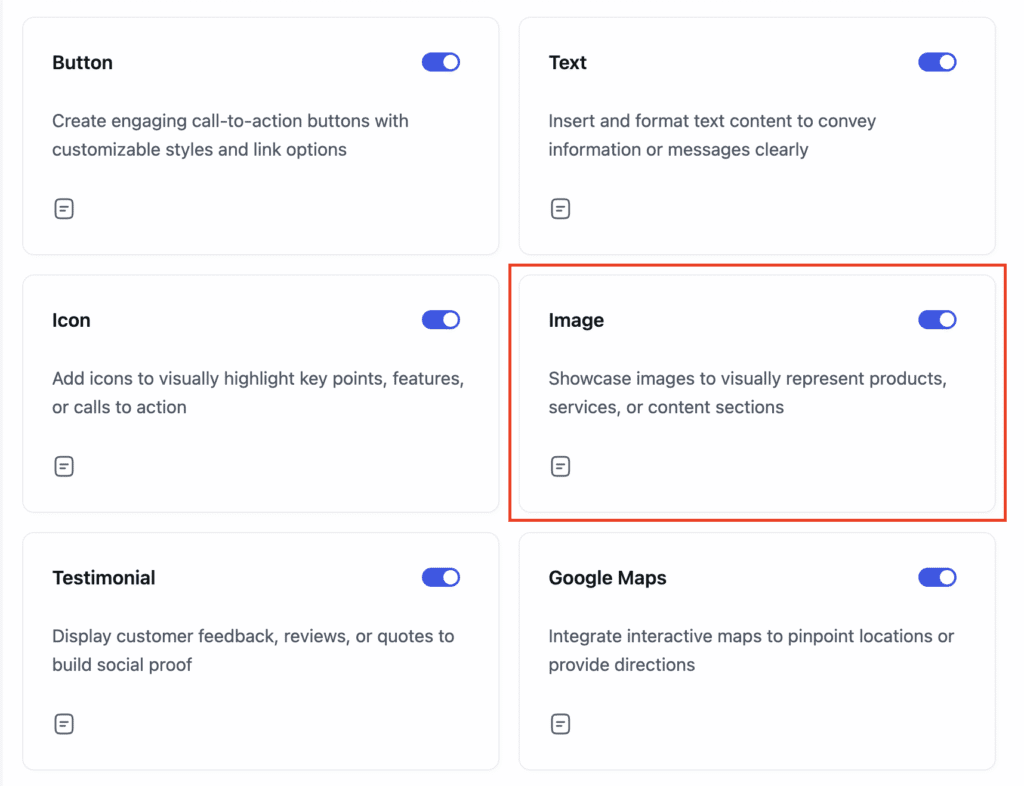
- Enable the Image Block from the Blocks Dashboard.
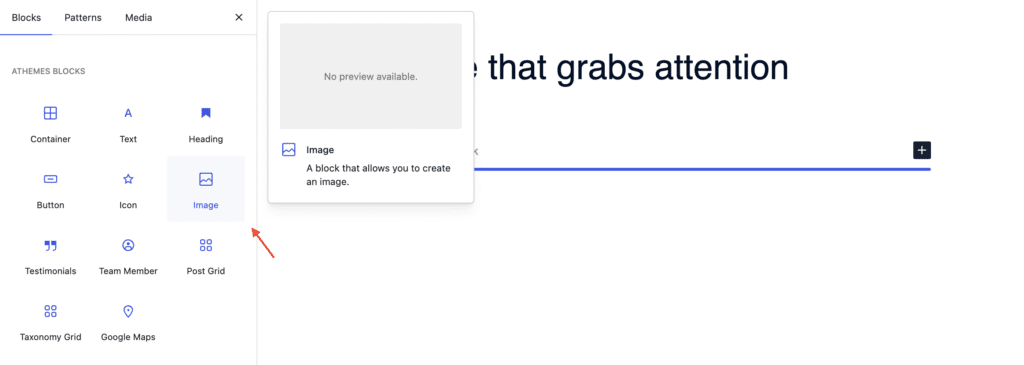
- Once enabled, add the Image Block to your page.
- After adding it, you can begin customizing your Image settings.
Configuring General Settings
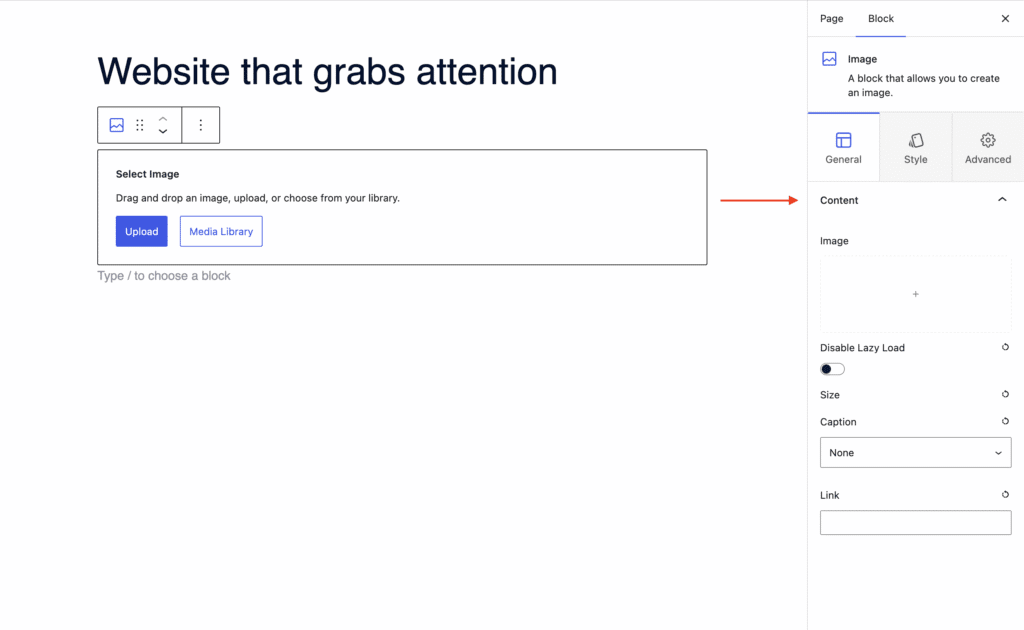
When the Image Block is selected, go to the General tab in the settings sidebar. Here, you can configure:
- Content: Upload or select an image from the Media Library or your computer. Additional Options:
- Disable lazy loading
- Add a caption
- Insert a link
- Adjust the image size
Adjusting Styling Options
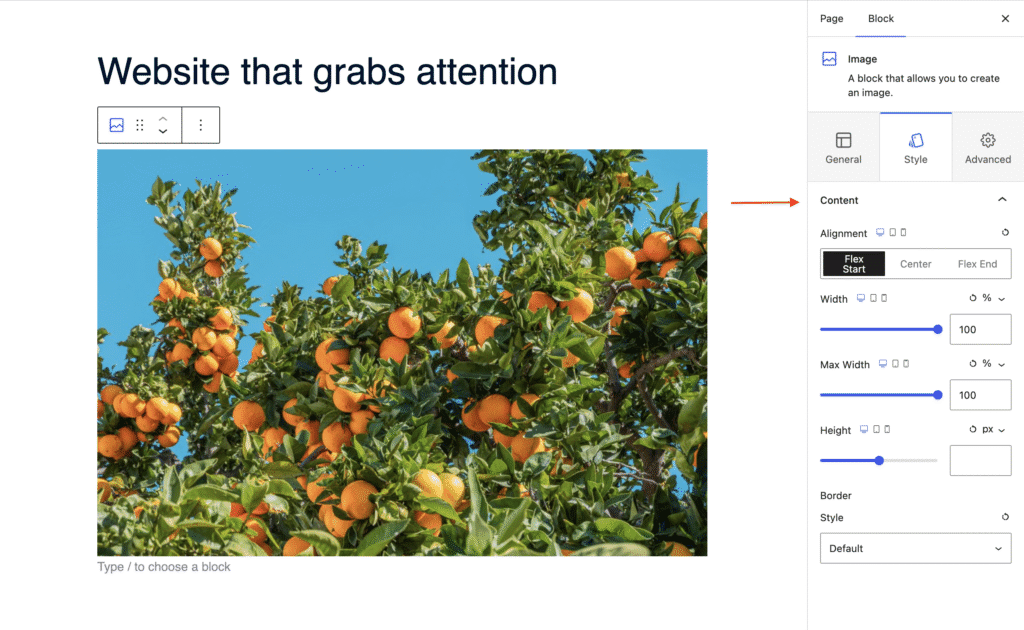
In the Style tab, you can control the visual appearance of the image:
- Content:
- Alignment: Align the image to flex start, center, or flex end.
- Dimensions: Set the width, max width, and height.
- Border: Customize the border style: choose from solid, dashed, dotted, and more.
Using Advanced Settings
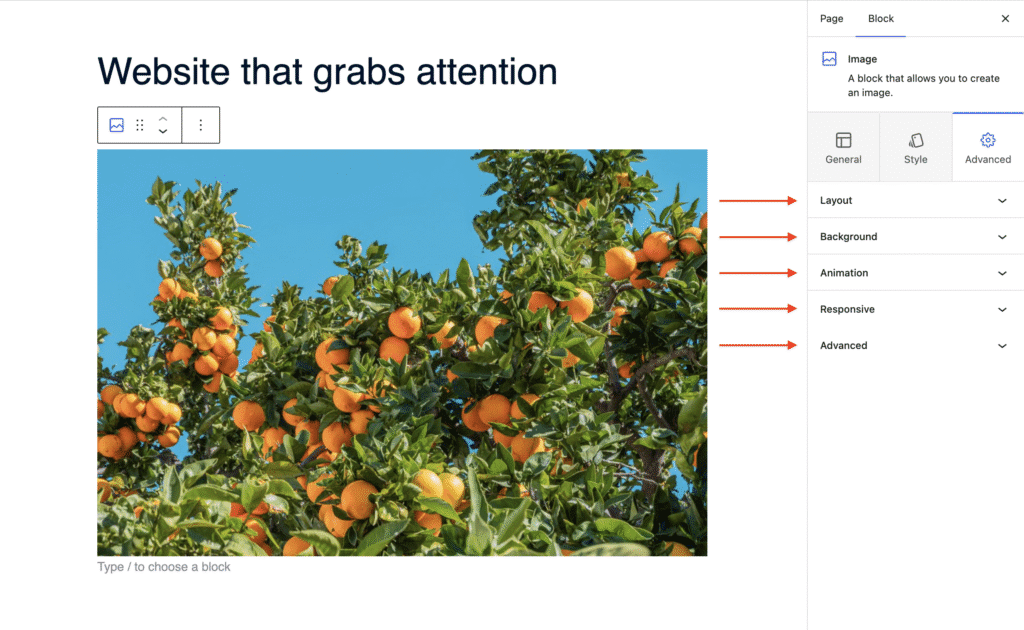
In the Advanced tab, you’ll find further customization options:
- Layout: Adjust padding, margin, and Z-index.
- Background: Set a background color for the entire block.
- Animation: Apply entrance animations like slide in, fade in, zoom in, rotate in, flip in, and more.
- Responsive: Control visibility by hiding the block on desktop, tablet, or mobile.
- Advanced: Add custom CSS classes or CSS IDs for additional styling.
Frequently Asked Questions
Below, we’ve answered some of the most common questions about the Image Block.
Can I add entrance animations to the image?
Yes. Open the Advanced tab and use the Animation option to apply effects like slide in, fade in, zoom in, and more.
How do I hide the image on mobile devices?
In the Advanced tab, use the Responsive option to hide the block on desktop, tablet, or mobile individually.
That’s it! You’ve successfully learned how to add and customize images using the aThemes Image Block.
Next, would you like to explore more blocks? Check out our guide on the Button Block to learn more.
