Using the WordPress Command Palette With Sydney
The command palette is a search box built into WordPress. You open it with a keyboard shortcut, type what you’re looking for, and pick a result to go there. WordPress fills it with links to your admin pages, and Sydney adds links to its Customizer settings and dashboard.
This tutorial will show you how to open the command palette and use Sydney’s shortcuts to reach your theme settings faster.
Requirements:
- The command palette shortcuts are available in both Sydney and Sydney Pro
- Ensure that you’ve installed Sydney version 2.73 or higher, or Sydney Pro version 4.3.3 or higher
- WordPress version 6.9 or higher, which adds the command palette to every screen of your admin area
- You’ll need to be logged in as an administrator
Before you get started, make sure Sydney is installed and active on your site. If you’re new to the theme, our quick start guide to Sydney walks you through the first steps.
Opening the Command Palette
From any screen in your WordPress admin area, press Cmd+K on a Mac or Ctrl+K on Windows. A search box opens in the middle of the screen.
On WordPress 7.0 and higher, you can also click the ⌘K button (Ctrl+K on Windows) in the toolbar at the top of the screen.
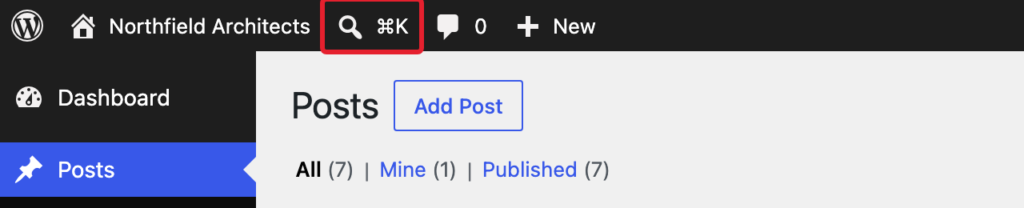
The command palette only works in your admin area. It doesn’t open on the front end of your site.
Finding Sydney’s Shortcuts
Type sydney in the search box. The results show Sydney’s shortcuts, and each one starts with Go to: Sydney.
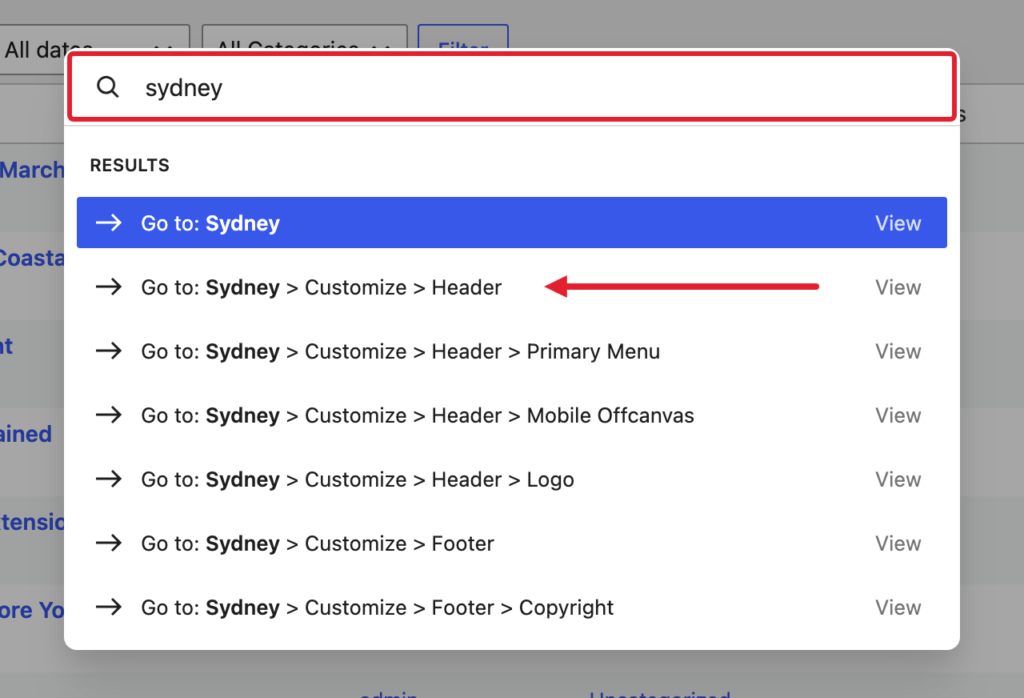
You can also search for the setting you want to change, such as logo, fonts, menu, or copyright. The matching Sydney shortcuts appear even if you don’t type “sydney”.
Sydney’s Shortcuts and Where They Go
Sydney adds the shortcuts below. Each Customize shortcut opens the Customizer on that panel or section.
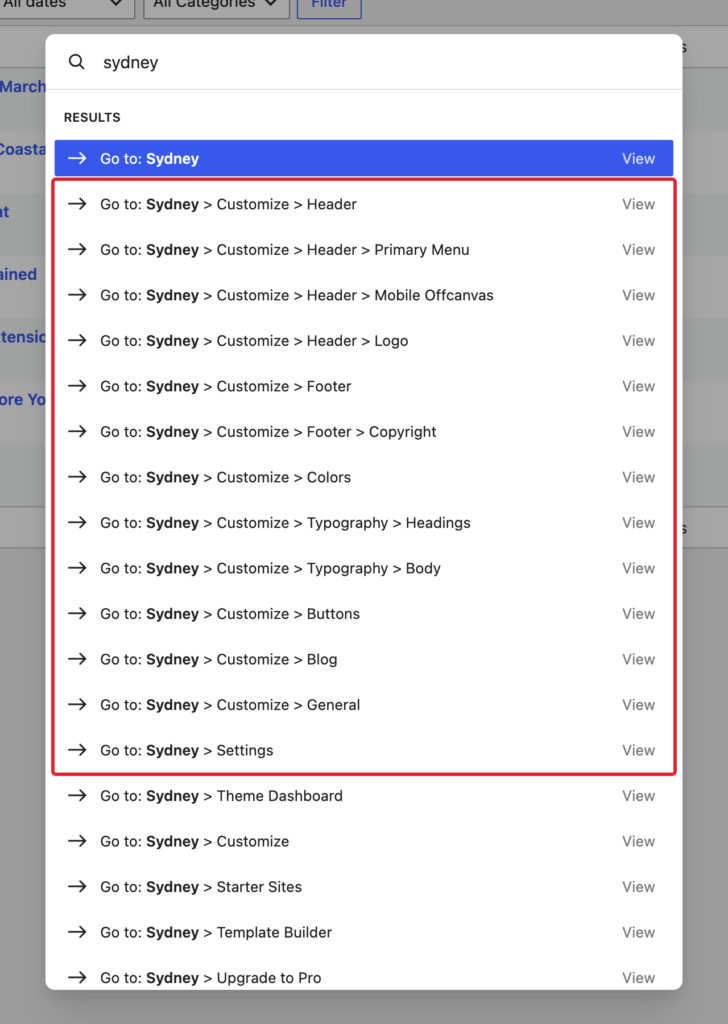
- Go to: Sydney > Customize > Header: Opens the Header Builder section. If you don’t use the Header & Footer Builder, it opens the Header panel instead.
- Go to: Sydney > Customize > Header > Primary Menu: Opens the builder’s Primary Menu section.
- Go to: Sydney > Customize > Header > Mobile Offcanvas: Opens the builder’s Mobile Offcanvas section.
- Go to: Sydney > Customize > Header > Logo: Opens your logo settings. With the builder, that’s the Logo section. Without it, it’s Site Identity.
- Go to: Sydney > Customize > Footer: Opens the Footer Builder section, or the Footer panel if you don’t use the builder.
- Go to: Sydney > Customize > Footer > Copyright: Opens the builder’s Copyright section, or the Copyright area section if you don’t use the builder.
- Go to: Sydney > Customize > Colors: Opens the Colors section of Global Styles.
- Go to: Sydney > Customize > Typography > Headings: Opens the Headings section of Global Styles.
- Go to: Sydney > Customize > Typography > Body: Opens the Body section of Global Styles.
- Go to: Sydney > Customize > Buttons: Opens the Buttons section of Global Styles.
- Go to: Sydney > Customize > Blog: Opens the Blog panel, with the Blog archives and Single posts sections.
- Go to: Sydney > Customize > General: Opens the General panel, where you’ll find layouts, images, performance, and the scroll to top button.
- Go to: Sydney > Customize > WooCommerce: Opens the WooCommerce panel. This shortcut only appears while WooCommerce is active.
- Go to: Sydney > Settings: Opens the Settings tab of the Sydney dashboard.
The Primary Menu and Mobile Offcanvas shortcuts only appear when you use the Header & Footer Builder.
WordPress also lists the pages in the Sydney admin menu, such as Go to: Sydney > Theme Dashboard and Go to: Sydney > Starter Sites.
Using a Shortcut
To use a shortcut, click it. You can also move through the results with the arrow keys and press Enter. For example, type logo and choose Go to: Sydney > Customize > Header > Logo.
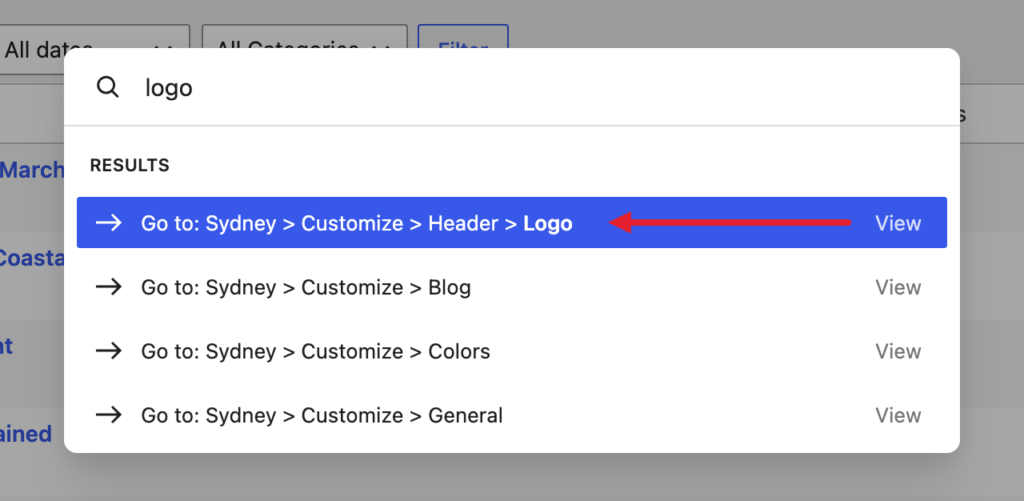
The Customizer opens on the Logo section, where you can upload your logo.
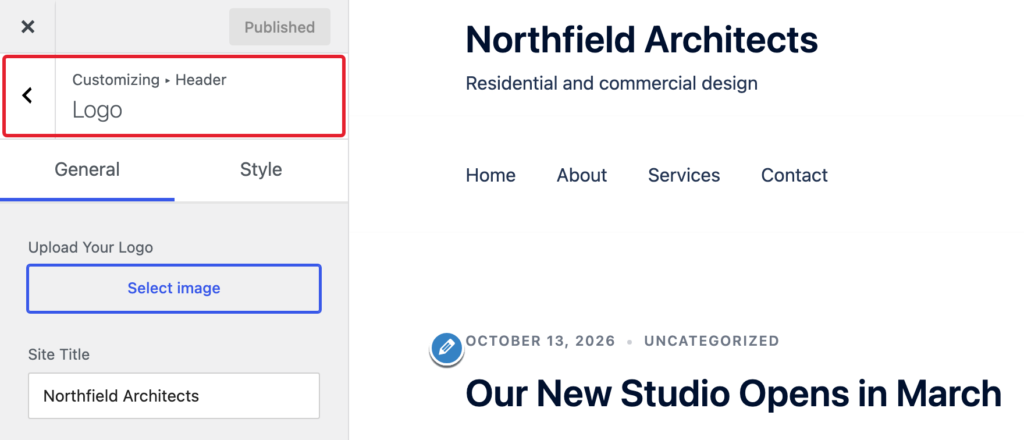
Make your changes and click Publish to save them, as you normally would in the Customizer.
Frequently Asked Questions
Below, we’ve answered some of the most common questions about using the command palette with Sydney.
Why don’t I see any Sydney shortcuts?
First, check that you’re running WordPress 6.9 or higher and Sydney 2.73 or higher (Sydney Pro 4.3.3 or higher). The shortcuts only show for users who can customize the site, which means administrators by default. They’re also hidden when you white label Sydney, along with the rest of the Sydney branding.
Why are some header shortcuts missing?
The Header, Primary Menu, and Mobile Offcanvas shortcuts need Sydney’s newer header. If your site still uses the old header, these shortcuts don’t appear. The Primary Menu and Mobile Offcanvas shortcuts also need the Header & Footer Builder. Header > Logo is always available.
Can I use the shortcuts inside the Customizer?
Yes. Press Cmd+K or Ctrl+K while you’re in the Customizer to jump to another Sydney section. The Customizer reloads on the section you pick, so publish your changes first. If you haven’t, your browser asks whether you want to leave the page.
That’s it! You can now open Sydney’s settings from any admin screen with the WordPress command palette.
Next, would you like to set up your site’s color scheme? Check out our guide on Global Colors to learn more.